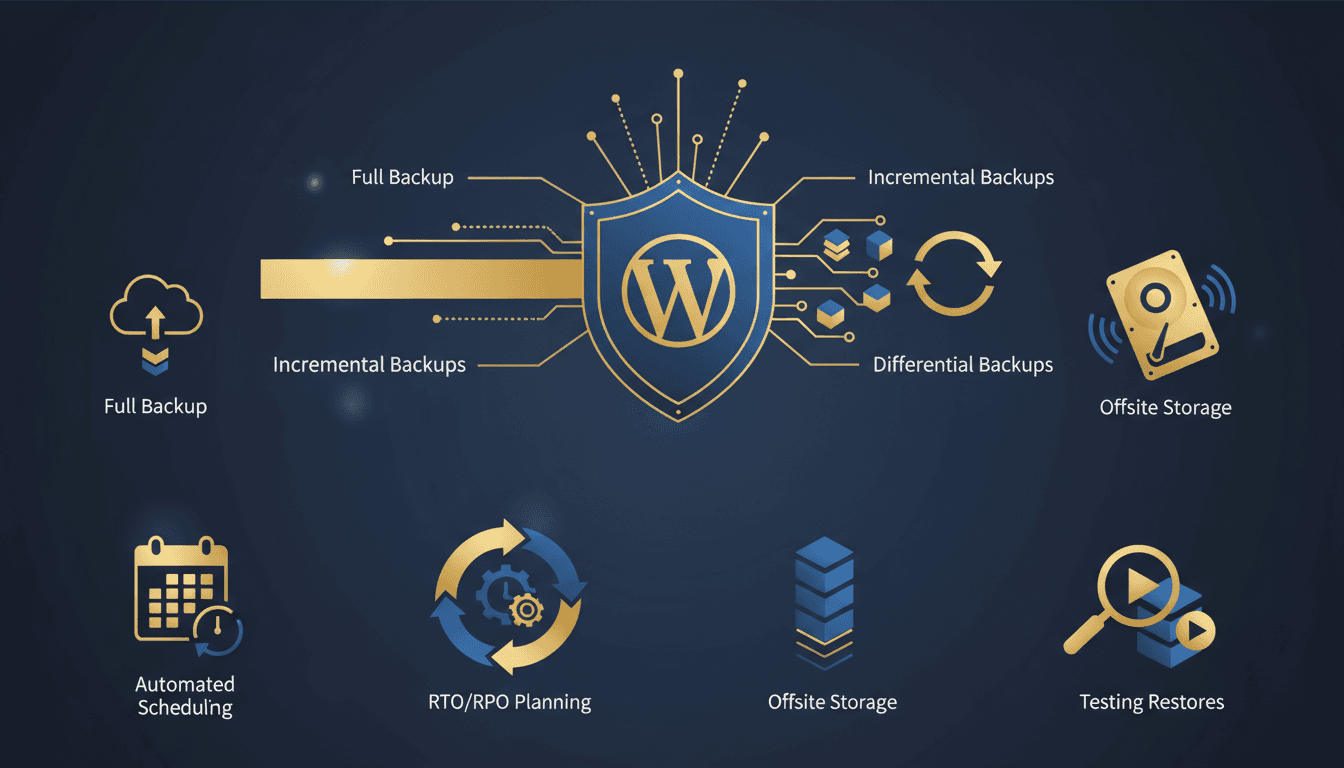
A WordPress backup strategy is a documented plan that defines what gets backed up, how often, where backups are stored, and how quickly you can restore, measured by Recovery Time Objective (RTO) and Recovery Point Objective (RPO). Without one, a single failed update, hack, or server crash can wipe out months of content and revenue permanently.
Why Most WordPress Backup Plans Fail
The backup itself is rarely the problem. The failure happens in one of three places: backups aren't frequent enough, they're stored on the same server as the site, or nobody ever tested whether they restore.
According to Acronis's 2025 Cyber Protection Report, 42% of companies that attempted to restore from backup discovered their backups were incomplete, corrupted, or too old to be useful. For WordPress specifically, the risks compound because a site consists of two distinct components: the file system (themes, plugins, uploads, core files) and the MySQL database (posts, pages, settings, user data). Miss either one, and the restore fails.
The most common WordPress backup mistakes:
- Relying on your hosting provider's "free" backups. Shared hosting backups are typically weekly, unverified, and stored on the same physical server.
- Only backing up the database. Your
wp-content/uploadsdirectory often contains years of irreplaceable media files. - Storing backups in the same data center, where an outage, fire, or ransomware attack takes your backups with it.
- Never testing restores. A backup file is just a zip archive until you prove it produces a working site.
- No retention policy. Malware can remain dormant for weeks, so a single backup isn't enough.
Understanding Backup Types: Full, Incremental, and Differential
Choosing the right backup type is a tradeoff between storage cost, backup speed, and restore complexity.
| Backup Type | What It Captures | Storage Size | Backup Speed | Restore Speed | Best For |
|---|---|---|---|---|---|
| Full | Everything (all files and database) | Large (1-10+ GB) | Slow | Fast (single file) | Weekly baseline |
| Incremental | Only changes since the last backup | Small (10-100 MB) | Fast | Slower (chain required) | Daily/hourly |
| Differential | All changes since the last full backup | Medium (grows daily) | Medium | Medium (full + one diff) | Daily |
Full backups create a complete snapshot of your WordPress installation. They're the simplest to restore: one file, one operation. The downside is size and time. A WooCommerce site with 20,000 products and years of media uploads can produce 5-10 GB full backups that take 15-30 minutes to complete, during which database writes may be locked.
Incremental backups capture only the files and database rows that changed since the previous backup (full or incremental). They're fast and small, typically 95% smaller than a full backup. The tradeoff is that restoring requires replaying the full backup plus every incremental backup in sequence, and if any backup in the chain is corrupted, the entire restore fails.
Differential backups capture everything that changed since the last full backup. They grow larger each day but only require two files to restore: the last full backup plus the latest differential. This is the sweet spot for most WordPress sites.
The recommended approach: run a full backup weekly, with daily incremental or differential backups between full backups. For high-traffic or e-commerce sites, add hourly incremental backups during business hours.
RTO and RPO: The Two Numbers That Define Your Strategy
Every backup strategy should start with two questions:
- RPO (Recovery Point Objective) is how much data you can afford to lose. If your RPO is 1 hour, you need hourly backups. If it's 24 hours, daily backups suffice.
- RTO (Recovery Time Objective) is how quickly the site must be back online. If your RTO is 15 minutes, you need pre-staged backups with automated restore. If it's 4 hours, manual restore from offsite storage may work.
These numbers are driven by business impact. According to Gartner's 2025 Infrastructure Report, the average cost of IT downtime is $5,600 per minute for mid-size businesses. For e-commerce WordPress sites, even 30 minutes of downtime during peak traffic can cost thousands in lost sales and damaged trust.
| Site Type | Recommended RPO | Recommended RTO | Backup Frequency |
|---|---|---|---|
| Personal blog | 24 hours | 24 hours | Daily |
| Business website | 4-12 hours | 1-4 hours | Every 6-12 hours |
| WooCommerce store | 1 hour | 15-30 minutes | Hourly |
| High-traffic/SaaS | 15 minutes | 5-15 minutes | Real-time replication |
For most WordPress business sites, a 4-hour RPO and 1-hour RTO provides a strong balance of protection and cost. TopSyde's managed hosting plans are built around these targets, with daily automated backups and one-click restore that gets sites back online within minutes.
Offsite and Geographic Backup Storage
Storing backups on the same server as your WordPress site defeats the purpose. A server failure, ransomware attack, or data center incident destroys your site and your backups simultaneously.
The 3-2-1 backup rule remains the gold standard:
- 3 copies of your data
- 2 different storage types (e.g., server + cloud object storage)
- 1 copy offsite in a different geographic region
For WordPress, this translates to:
- Primary: the live site itself
- Local backup: on-server snapshot for fast restore, which handles accidental deletions and failed updates
- Offsite backup: cloud storage in a different region, which handles server failure, data center outage, and ransomware
Popular offsite storage options for WordPress backups:
- Amazon S3: industry standard, lifecycle policies for cost management, cross-region replication available
- Google Cloud Storage: strong for sites already running on Google infrastructure
- Backblaze B2: 75% cheaper than S3 for storage-heavy backup archives
- Wasabi: flat-rate pricing with no egress fees, which matters because restore costs can spike with S3 if you download frequently
Encrypt backups at rest (AES-256 minimum) and in transit (TLS 1.2+). A backup containing your wp-config.php file includes database credentials, authentication keys, and salts. If that file leaks, your entire site is compromised.
Automated vs. Manual Backups
Manual backups are better than no backups. But they fail for the same reason manual anything fails: humans forget, skip steps, and make errors under pressure.
Manual backup involves exporting the database via phpMyAdmin or WP-CLI and downloading the wp-content directory via SFTP. It takes 10-30 minutes per site and requires technical knowledge. Agencies managing 20+ sites can't sustain this.
Automated backup uses either a WordPress plugin (UpdraftPlus, BlogVault, BackupBuddy) or server-level tooling (cron + mysqldump + rsync). Automated backups run on schedule, store to predefined destinations, and send alerts on failure.
The key differences:
| Factor | Manual | Plugin-Based | Server-Level |
|---|---|---|---|
| Reliability | Low, human-dependent | Medium, depends on WP cron | High, OS-level scheduling |
| Performance impact | High during backup | Medium, runs inside PHP | Low, snapshots bypass PHP |
| Database consistency | Risk of partial writes | Uses PHP locks (imperfect) | Uses mysqldump --single-transaction |
| Works when site is down | Only via SSH | No, requires WordPress to load | Yes |
| Storage options | Whatever you choose | Plugin-specific integrations | Any destination via rsync/rclone |
Server-level backups are superior because they work independently of WordPress. If your site is hacked, a PHP fatal error crashes it, or a plugin conflict takes it offline, plugin-based backup tools go down with it. Server-level backups continue running regardless.
TopSyde's hosting infrastructure runs automated server-level backups outside of WordPress, ensuring backups complete even if the site is compromised. Every backup is integrity-verified before being written to offsite storage.
How to Test Your Backup Restores
An untested backup is a liability, not an asset. Schedule restore tests monthly, quarterly at absolute minimum.
The restore test process:
- Provision a staging environment: a separate server or subdomain with the same PHP version, MySQL version, and server configuration as production.
- Restore the latest backup. Import the database, upload files, verify file permissions.
- Test core functionality: load the homepage, walk through key pages, test forms, verify WooCommerce checkout if applicable.
- Check the database. Confirm post counts, user accounts, and plugin settings match production.
- Verify media files by spot-checking that images and downloads are intact and accessible.
- Document the restore time so you can track how long the process takes and validate your RTO target.
- Log any issues. Corrupted files, missing tables, and permission errors must be fixed before the next disaster.
According to the Disaster Recovery Preparedness Council's 2025 Annual Report, organizations that test restores quarterly are 7× more likely to achieve their RTO targets during actual incidents compared to those that never test.
WP-CLI makes testing faster:
# Export the production database
wp db export production-backup.sql --single-transaction

# Import to staging
wp db import production-backup.sql --url=staging.example.com

# Search-replace URLs for staging
wp search-replace 'https://example.com' 'https://staging.example.com' --precise --all-tables

# Verify post count matches
wp post list --post_type=post --format=count
Building a Complete WordPress Backup Schedule
Combining everything above, here's a production-ready backup schedule:
| Frequency | Backup Type | Storage Location | Retention |
|---|---|---|---|
| Hourly | Incremental (database only) | Local server | 48 hours |
| Daily | Differential (files + database) | Local + offsite (S3/B2) | 30 days |
| Weekly | Full (complete snapshot) | Offsite (separate region) | 90 days |
| Monthly | Full (archived) | Cold storage (Glacier/Archive) | 1 year |
For WooCommerce stores processing orders, increase the database backup frequency to every 15-30 minutes during business hours. Every lost order is lost revenue and a frustrated customer.
Monitor your backups actively. Set up alerts for:
- Backup job failures or timeouts
- Backup size anomalies (sudden size drops often indicate incomplete backups)
- Storage destination connectivity issues
- Encryption verification failures
With TopSyde's managed hosting, this entire backup infrastructure is built in. Daily automated backups with 30-day retention run at the server level, include integrity verification, and restore with a single click from the client portal, all included in the flat $89/month, no add-ons. You set your RPO and RTO targets, and we engineer the infrastructure to meet them.
Keep Reading on TopSyde
- Agency Client Retention: How Better Hosting Reduces Churn by 40%. How premium WordPress hosting helps agencies retain clients longer and increase MRR through proactive monitoring, white-label dashboards, and care plan packaging.
- AI-Powered WordPress Monitoring: What It Is and Why It Matters. AI WordPress monitoring catches problems before they cost you customers. Learn how intelligent monitoring differs from basic uptime checks and saves businesses money.
- Is Managed WordPress Hosting Worth the Extra Cost?. ROI breakdown: when managed WordPress hosting pays for itself and when it doesn't. Real numbers, overlooked costs, and buyer profiles.
- WordPress Hosting for Freelancers: Stop Babysitting Servers. Freelance web developers lose 10+ hours weekly on server admin. See how managed WordPress hosting frees your time and creates new revenue streams.
- Full technical spec sheet
- Our infrastructure stack
Frequently Asked Questions
How often should I back up my WordPress site?
Daily minimum for any business site. E-commerce sites processing orders should back up the database hourly. Your backup frequency should match your RPO: if losing 4 hours of data is unacceptable, you need backups at least every 4 hours.
Are WordPress backup plugins reliable?
Plugins like UpdraftPlus and BlogVault work well for basic backup needs. Their limitation is that they run inside WordPress, so if a PHP error, hack, or plugin conflict crashes your site, the backup plugin goes down with it. Server-level backups (used by managed hosting providers) operate independently of WordPress and continue running even when the site is offline.
Where should I store WordPress backups?
Never on the same server as your site. Use the 3-2-1 rule: three copies, two storage types, one offsite in a different geographic region. Amazon S3, Backblaze B2, and Google Cloud Storage are all solid options. Encrypt backups at rest and in transit, since they contain database credentials and potentially customer data.
How do I restore a WordPress site from backup?
The process depends on your backup method. For server-level backups: import the database via MySQL CLI or phpMyAdmin, upload files via SFTP or rsync, verify file permissions, and run wp search-replace if the domain changed. For plugin-based backups: install the plugin on a fresh WordPress installation and use its restore wizard. Managed hosting providers like TopSyde offer one-click restore from the client dashboard.
What's the difference between RTO and RPO?
RPO (Recovery Point Objective) is how much data you can afford to lose, and it determines backup frequency. RTO (Recovery Time Objective) is how fast you need the site back online, and it determines your restore method and infrastructure. A 1-hour RPO needs hourly backups; a 15-minute RTO needs pre-staged restores with automated failover.
How long should I keep WordPress backups?
30 days minimum. Malware can remain dormant for weeks before detection, so you need enough history to restore to a clean state. Keep weekly backups for 90 days and monthly archives for one year. For regulated industries (healthcare, finance), compliance requirements may mandate longer retention.

DevOps & Security Lead
12+ years DevOps, Linux & cloud infrastructure certified
Marcus leads infrastructure and security at TopSyde, managing the server fleet and AI monitoring systems that keep client sites fast and protected. Former sysadmin turned WordPress hosting specialist.