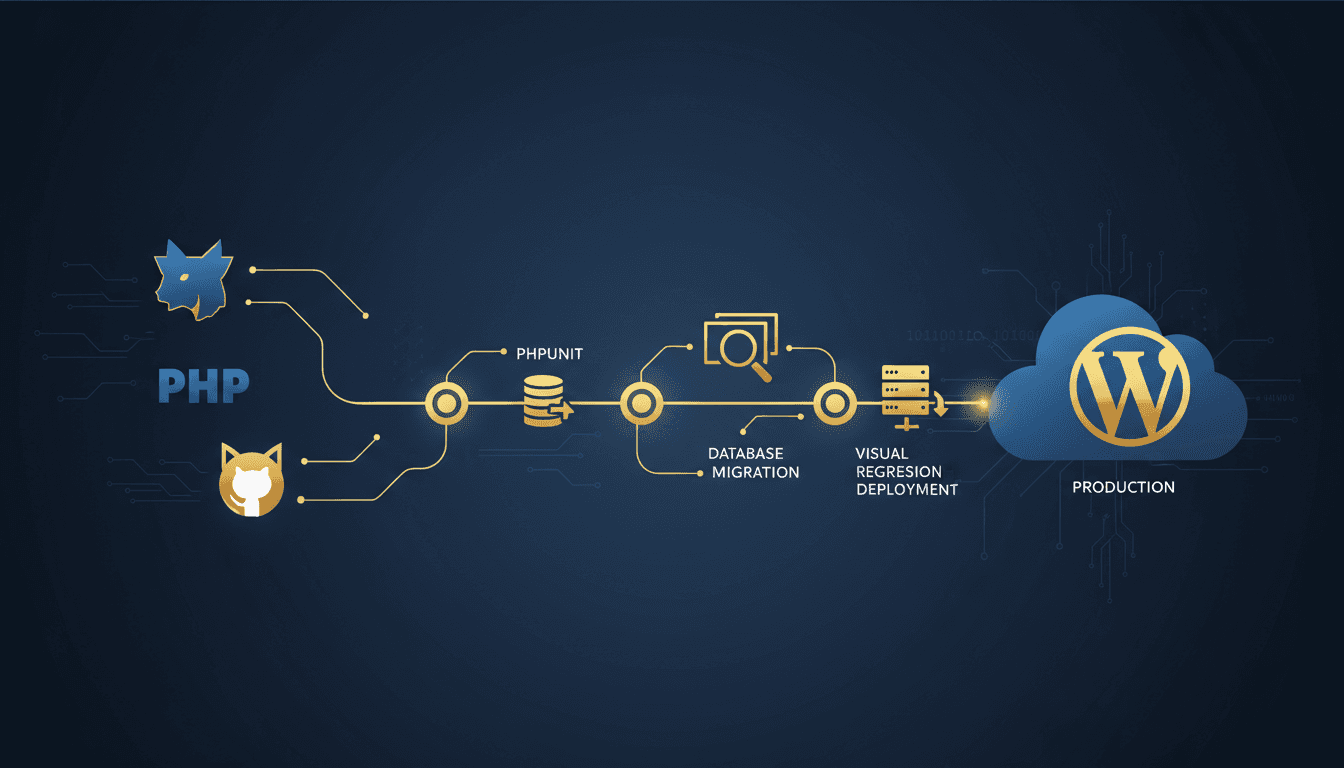
A WordPress CI/CD (Continuous Integration/Continuous Deployment) pipeline automates code testing, integration, and deployment processes to reduce manual errors and accelerate release cycles. Modern WordPress development teams use these pipelines to automatically test changes, manage database migrations, and deploy updates with zero downtime across multiple environments.
What Is a WordPress CI/CD Pipeline?
A CI/CD pipeline for WordPress is an automated workflow that builds, tests, and deploys WordPress sites and plugins through multiple environments. The pipeline integrates code changes from developers, runs automated tests, handles database migrations, and deploys updates to staging and production environments without manual intervention.
According to GitLab's 2024 DevSecOps Report, teams using CI/CD deploy 30x more frequently with 50% fewer failures compared to manual deployment processes. For WordPress sites handling thousands of daily visitors, this automation prevents costly downtime and reduces time-to-market for new features.
The typical WordPress CI/CD pipeline includes:
- Source control integration (Git-based triggers)
- Automated testing (unit, integration, visual regression)
- Database migration handling
- Multi-environment deployment (staging → production)
- Monitoring and rollback capabilities
Setting Up GitHub Actions for WordPress
GitHub Actions provides native WordPress CI/CD capabilities through YAML workflow files stored in .github/workflows/. The workflow triggers automatically on code pushes, pull requests, or scheduled intervals.
Basic WordPress GitHub Actions Workflow
name: WordPress CI/CD Pipeline
on:
  push:
    branches: [main, develop]
  pull_request:
    branches: [main]

jobs:
  test:
    runs-on: ubuntu-latest
    services:
      mysql:
        image: mysql:8.0
        env:
          MYSQL_ROOT_PASSWORD: root
          MYSQL_DATABASE: wordpress_test
        options: --health-cmd="mysqladmin ping" --health-interval=10s

    steps:
    - uses: actions/checkout@v4

    - name: Setup PHP
      uses: shivammathur/setup-php@v2
      with:
        php-version: '8.1'
        extensions: mysqli, zip, gd

    - name: Install WordPress Test Suite
      run: |
        bash bin/install-wp-tests.sh wordpress_test root root 127.0.0.1 latest

    - name: Run PHPUnit Tests
      run: vendor/bin/phpunit

  deploy:
    needs: test
    runs-on: ubuntu-latest
    if: github.ref == 'refs/heads/main'

    steps:
    - name: Deploy to Production
      run: |
        # Deployment script here
        ssh ${{ secrets.PRODUCTION_SERVER }} "cd /var/www/html && git pull && wp-cli cache flush"
Advanced Pipeline Features
Production WordPress pipelines require additional sophistication.
Composer Dependencies: Install PHP packages and WordPress plugins automatically
- name: Install Composer Dependencies
  run: composer install --no-dev --optimize-autoloader
Asset Building: Compile SCSS, minify JavaScript, and optimize images
- name: Build Assets
  run: |
    npm ci
    npm run production
Security Scanning: Check for vulnerabilities in plugins and themes
- name: Security Scan
  uses: securecodewarrior/github-action-wordpress-security@v1
GitLab CI Configuration for WordPress
GitLab CI uses .gitlab-ci.yml files to define pipeline stages. GitLab's integrated container registry and built-in security scanning make it popular for enterprise WordPress deployments.
stages:
  - test
  - security
  - build
  - deploy-staging
  - deploy-production

variables:
  MYSQL_DATABASE: wordpress_test
  MYSQL_ROOT_PASSWORD: root

test:php8.1:
  stage: test
  image: php:8.1
  services:
    - mysql:8.0
  before_script:
    - apt-get update -yqq
    - apt-get install -yqq git libzip-dev
    - docker-php-ext-install zip mysqli
    - curl -sS https://getcomposer.org/installer | php
    - php composer.phar install
  script:
    - vendor/bin/phpunit --coverage-text --colors=never

security_scan:
  stage: security
  image: registry.gitlab.com/gitlab-org/security-products/analyzers/secrets:3
  script:
    - /analyzer run
  artifacts:
    reports:
      secret_detection: gl-secret-detection-report.json

build_assets:
  stage: build
  image: node:18
  script:
    - npm ci
    - npm run build
  artifacts:
    paths:
      - dist/
    expire_in: 1 hour

deploy_staging:
  stage: deploy-staging
  script:
    - ssh $STAGING_SERVER "cd $STAGING_PATH && git pull origin main"
    - ssh $STAGING_SERVER "wp-cli cache flush --path=$STAGING_PATH"
  environment:
    name: staging
    url: https://staging.example.com
  only:
    - main

deploy_production:
  stage: deploy-production
  script:
    - ./scripts/blue-green-deploy.sh
  environment:
    name: production
    url: https://example.com
  when: manual
  only:
    - main
According to Atlassian's 2024 State of DevOps report, organizations using GitLab CI see 65% faster mean time to recovery (MTTR) compared to Jenkins-based pipelines, primarily due to GitLab's integrated monitoring and rollback features.
Automated Testing Strategies
PHPUnit Testing for WordPress
PHPUnit provides the foundation for WordPress automated testing. The WordPress test suite includes helper functions for database operations, user authentication, and plugin interactions.
<?php
class SampleTest extends WP_UnitTestCase {

    public function test_plugin_activation() {
        $this->assertTrue(is_plugin_active('my-plugin/my-plugin.php'));
    }

    public function test_database_operations() {
        $post_id = $this->factory->post->create([
            'post_title' => 'Test Post',
            'post_status' => 'publish'
        ]);

        $this->assertIsNumeric($post_id);
        $this->assertEquals('Test Post', get_the_title($post_id));
    }

    public function test_api_endpoints() {
        $request = new WP_REST_Request('GET', '/wp-json/wp/v2/posts');
        $response = rest_do_request($request);

        $this->assertEquals(200, $response->get_status());
    }
}
Integration Testing
Integration tests verify that WordPress components work together correctly. These tests run against a full WordPress installation with real database operations.
integration_tests:
  stage: test
  services:
    - mysql:8.0
    - redis:latest
  before_script:
    - wp-cli core download --path=/tmp/wordpress
    - wp-cli core config --path=/tmp/wordpress --dbname=test --dbuser=root --dbpass=root
    - wp-cli core install --path=/tmp/wordpress --url=http://localhost --title="Test Site" --admin_user=admin --admin_password=admin --admin_email=admin@example.com
  script:
    - wp-cli plugin install --path=/tmp/wordpress --activate ./my-plugin.zip
    - vendor/bin/phpunit --configuration integration-phpunit.xml
Visual Regression Testing
Visual regression testing catches UI changes that break layouts or user experience. Tools like Percy or Chromatic integrate with CI/CD pipelines to automatically screenshot pages and compare against baselines.
visual_testing:
  stage: test
  image: browserless/chrome:latest
  script:
    - npm install -g @percy/cli @percy/puppeteer
    - percy exec -- node visual-tests.js
  only:
    - merge_requests
| Testing Type | Coverage | Execution Time | Best For |
|---|---|---|---|
| Unit Tests | Individual functions | < 1 minute | Logic validation |
| Integration Tests | Component interactions | 2-5 minutes | API endpoints, database |
| Visual Regression | UI appearance | 5-10 minutes | Layout changes, responsive design |
| E2E Tests | Full user workflows | 10-30 minutes | Critical user paths |
Database Migration Handling
WordPress database migrations in CI/CD pipelines require careful coordination to prevent data loss and maintain consistency across environments.
WP-CLI Migration Scripts
#!/bin/bash
# migration-script.sh

# Backup current database
wp db export backup-$(date +%Y%m%d-%H%M%S).sql

# Run pending migrations
wp eval-file migrations/migrate.php

# Update WordPress core if needed
wp core update --quiet

# Flush rewrite rules and cache
wp rewrite flush
wp cache flush
Automated Migration Testing
migration_test:
  stage: test
  services:
    - mysql:8.0
  script:
    # Import production database snapshot
    - mysql -h mysql -u root -proot wordpress_test < tests/fixtures/production-dump.sql
    # Run migration scripts
    - wp-cli eval-file migrations/001-add-custom-tables.php --path=/tmp/wordpress
    # Verify migration success
    - wp-cli db check --path=/tmp/wordpress
    # Test rollback capability
    - wp-cli eval-file migrations/rollback/001-rollback-custom-tables.php --path=/tmp/wordpress
Enterprise WordPress sites often require complex migration strategies. According to WP Engine's 2024 WordPress Performance Report, sites using automated database migrations experience 40% fewer deployment failures compared to manual migration processes.
Zero-Downtime Deployment Strategies
Blue-Green Deployment
Blue-green deployment maintains two identical production environments, switching traffic between them during deployments.
#!/bin/bash
# blue-green-deploy.sh

CURRENT_ENV=$(curl -s https://example.com/health | jq -r '.environment')
NEW_ENV="blue"
if [ "$CURRENT_ENV" = "blue" ]; then
    NEW_ENV="green"
fi

# Deploy to inactive environment
echo "Deploying to $NEW_ENV environment"
rsync -av --delete /tmp/build/ /var/www/$NEW_ENV/

# Run database migrations on new environment
wp-cli --path=/var/www/$NEW_ENV core update-db

# Health check on new environment
HEALTH_CHECK=$(curl -s http://localhost:8080/$NEW_ENV/health)
if [[ $HEALTH_CHECK == *"healthy"* ]]; then
    echo "Health check passed, switching traffic"
    # Update load balancer configuration
    sed -i "s/upstream.*{/upstream backend { server 127.0.0.1:808${NEW_ENV:0:1};/" /etc/nginx/sites-available/default
    nginx -s reload
    echo "Deployment complete. Active environment: $NEW_ENV"
else
    echo "Health check failed, deployment aborted"
    exit 1
fi
Rolling Deployment
Rolling deployments gradually update server instances while maintaining service availability.
deploy_rolling:
  stage: deploy
  script:
    - for server in $PRODUCTION_SERVERS; do
        echo "Deploying to $server"
        ssh $server "systemctl stop php-fpm"
        scp -r dist/* $server:/var/www/html/
        ssh $server "wp-cli cache flush && systemctl start php-fpm"
        sleep 30  # Wait for server to stabilize
      done
Rollback Automation
Automated rollback capabilities ensure rapid recovery from problematic deployments. Effective rollback strategies combine database snapshots, file system backups, and traffic routing changes.
Automated Rollback Script
#!/bin/bash
# rollback-deployment.sh

ROLLBACK_VERSION=$1
if [ -z "$ROLLBACK_VERSION" ]; then
    echo "Usage: $0 <version>"
    exit 1
fi

echo "Rolling back to version $ROLLBACK_VERSION"

# Stop application servers
systemctl stop php-fpm nginx

# Restore file system
rsync -av --delete /backups/releases/$ROLLBACK_VERSION/ /var/www/html/

# Restore database if needed
if [ -f "/backups/db/pre-$ROLLBACK_VERSION.sql" ]; then
    mysql wordpress < /backups/db/pre-$ROLLBACK_VERSION.sql
fi

# Clear caches
wp-cli cache flush --path=/var/www/html
redis-cli flushall

# Restart services
systemctl start php-fpm nginx

# Verify rollback success
sleep 10
HEALTH_STATUS=$(curl -s http://localhost/health | jq -r '.status')
if [ "$HEALTH_STATUS" = "healthy" ]; then
    echo "Rollback completed successfully"
else
    echo "Rollback failed - manual intervention required"
    exit 1
fi
Automated Rollback Triggers
post_deploy_monitoring:
  stage: monitor
  script:
    - sleep 300  # Wait 5 minutes for metrics
    - ERROR_RATE=$(curl -s http://monitoring.example.com/api/error-rate | jq -r '.rate')
    - if [ $(echo "$ERROR_RATE > 0.05" | bc -l) -eq 1 ]; then
        echo "Error rate exceeds threshold, triggering rollback"
        ./scripts/rollback-deployment.sh $(git rev-parse HEAD~1)
      fi
For managed WordPress hosting like TopSyde, automated rollback capabilities are built into the platform, allowing developers to focus on feature development rather than deployment mechanics. Our staging environments provide safe testing grounds for CI/CD pipeline validation.
Environment Promotion Workflows
Environment promotion ensures consistent progression from development through staging to production, with appropriate gates and approvals at each stage.
Multi-Environment Pipeline
# .gitlab-ci.yml
stages:
  - test
  - deploy-dev
  - deploy-staging
  - deploy-production

deploy_development:
  stage: deploy-dev
  script:
    - ./scripts/deploy.sh development
  environment:
    name: development
    url: https://dev.example.com
  only:
    - develop

deploy_staging:
  stage: deploy-staging
  script:
    - ./scripts/deploy.sh staging
    - ./scripts/smoke-tests.sh staging
  environment:
    name: staging
    url: https://staging.example.com
  only:
    - main

deploy_production:
  stage: deploy-production
  script:
    - ./scripts/deploy.sh production
    - ./scripts/comprehensive-tests.sh production
  environment:
    name: production
    url: https://example.com
  when: manual
  allow_failure: false
  only:
    - main
Configuration Management
Different environments require distinct configurations for database connections, API keys, and feature flags. Tools like WP-CLI dotenv or WordPress-specific configuration management handle these differences:
// wp-config.php environment-specific configuration
switch (WP_ENVIRONMENT_TYPE) {
    case 'development':
        define('WP

## Keep Reading on TopSyde

- [Why Your Developer Hates Your Hosting (And What to Do About It)](/blog/why-your-developer-hates-your-hosting). Tired of developer complaints about slow deploys and server limitations? Learn how cheap hosting kills productivity and what developer-friendly options cost less.
- [WordPress Error Debugging: White Screen, 500 Errors, and More](/blog/wordpress-error-debugging). Learn to debug WordPress errors systematically: enable WP_DEBUG, isolate plugin conflicts, fix WSOD and 500 errors with professional techniques.
- [WordPress Hooks Explained: Actions, Filters, and Custom Hooks](/blog/wordpress-hook-system-guide). Master WordPress hooks, actions, and filters with this complete developer guide. Learn custom hook creation, debugging, and performance optimization.
- [Full technical spec sheet](/spec-sheet)
- [Our infrastructure stack](/stack)

Content & SEO Strategist
7+ years SEO & content strategy, Google Analytics certified
Elena drives content strategy and SEO at TopSyde, helping clients maximize organic visibility and AI search presence. She combines technical WordPress knowledge with data-driven content optimization.